
How to Choose an Interactive Display for Corporate Presentations
An interactive display turns a meeting from a one-way presentation into a working session. In Singapore, interactive displays have moved from boardroom luxury to standard kit for any meeting room where collaboration matters. This guide covers what an interactive display does, why it improves corporate presentations, the features to compare, the right size for each room, connectivity & software considerations and the buying mistakes to avoid.
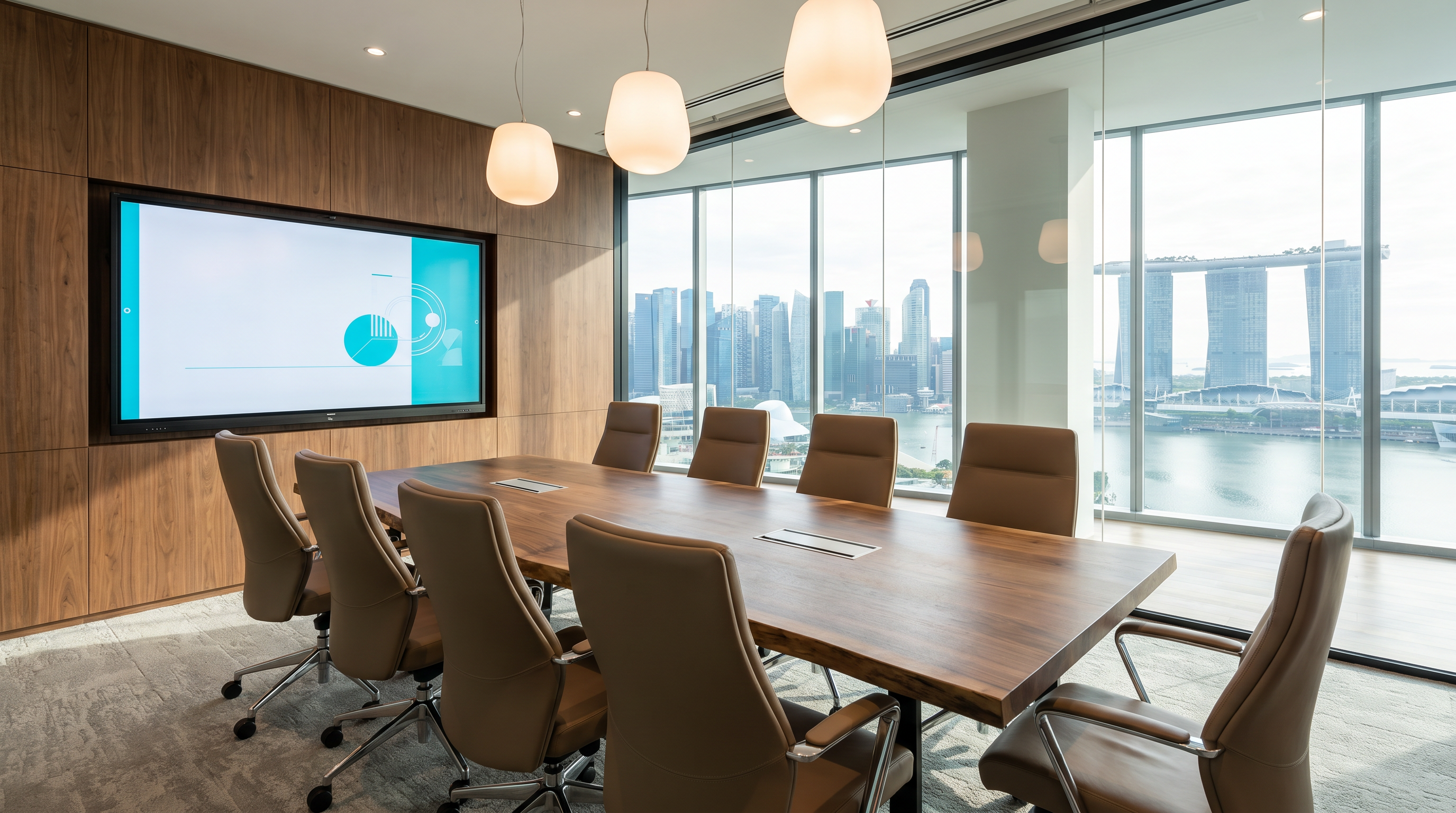
What an Interactive Display Does
An interactive display is a large-format commercial panel (typically 55" to 86") with built-in touch. Where a normal meeting room TV is a one-way screen for slide presentations, an interactive display adds three capabilities that change the meeting:
- Touch and annotation — presenters can mark up slides, draw on whiteboards, and manipulate content directly on the screen.
- Wireless screen sharing — participants can share their laptop, phone or tablet to the display without cables.
- Built-in collaboration — most panels ship with a digital whiteboard, sticky notes, and screen recording, so the meeting's output is a shareable artifact, not just a moment in time.
In a Singapore corporate context, an interactive display replaces a meeting room's projector or TV, a wall-mounted whiteboard, and (often) the room's video conferencing device. One piece of hardware covers three traditional tools.

Why It Improves Corporate Presentations
Three measurable benefits show up in the first 6 months of a typical deployment:
1. Shorter, more focused meetings. When everyone can write on the screen and share their laptop in 5 seconds, the friction of "I'll send the slides after" disappears. Meetings get to the point faster because the tools don't slow people down.
2. Better hybrid participation. A modern interactive display paired with a USB or built-in conference camera delivers a hybrid experience that doesn't make remote attendees feel like second-class participants. Whiteboard notes written in-room can be shared with remote attendees in real time.
3. Fewer "lost" outputs. Traditional meetings end with verbal decisions and a flurry of follow-up emails. Interactive displays record annotations, save whiteboards as PDFs, and integrate with Teams / Zoom to auto-generate meeting notes. Decisions stop disappearing.
Key Features to Compare
Not all interactive displays are equal. Here are the features that actually matter, in priority order:
1. Touch technology & latency. Good IR touch has under 10ms latency and supports 20+ simultaneous touch points. Bad IR feels laggy. Test the touch before buying — the difference between a S$3,500 and S$6,000 panel is often the touch controller quality, not the screen.
2. Resolution & brightness. 4K is now standard; 1080p panels are obsolete for any new install. Brightness should be 350 nits minimum for typical office lighting, 450+ for sun-facing rooms.
3. Built-in collaboration software. Every major brand bundles software, but the quality varies wildly. The best (CleverTouch, Promethean, iiyama's TE12 series) ship with mature whiteboarding and screen-sharing. The worst are barely-functional demos.
4. Wireless screen sharing. Look for panels that support AirPlay, Miracast and Chromecast natively, with no dongle required. Bonus points for 4-split screen sharing (4 devices on screen at once).
5. USB-C input with power delivery. A single USB-C cable carrying video, touch, audio AND 60W of laptop charging is a meeting-room UX breakthrough. Worth paying extra for.
6. Onboard compute (OPS slot). An OPS (open pluggable specification) slot lets you add a Windows mini-PC behind the screen, turning the panel into a standalone meeting room PC. Useful if you don't want to bring a laptop at all.
Best Display Sizes for Different Meeting Rooms
Screen size is dictated by viewing distance. The rule of thumb for comfortable reading: viewing distance should be 1.5 to 2.5× the screen's diagonal. A 65-inch display is comfortable from 2.5 to 4 metres — which covers most huddle rooms and standard meeting rooms in Singapore offices.
| Room type | Seats | Recommended size | Viewing distance |
|---|---|---|---|
| Huddle room (2–4 pax) | 2–4 | 55" 4K | 1.5–2.5 m |
| Standard meeting room (4–8 pax) | 4–8 | 65" 4K | 2.5–4 m |
| Boardroom (8–14 pax) | 8–14 | 75" 4K | 3–5 m |
| Large boardroom / training (14+ pax) | 14+ | 86" 4K or 98" | 4–6 m |
| Open collaboration space | various | Multiple 65"–75" tiled | various |
Connectivity and Software Compatibility
Hardware is the easy half. The hard half is making sure the display plays nicely with your existing meeting ecosystem.
Microsoft Teams Rooms / Zoom Rooms. If you run MTR or Zoom Rooms, look for displays that are MTR- or Zoom-certified. These panels have a certified compute module, a tested camera and mic array, and a single-button "start meeting" experience. They cost more but eliminate the "why won't the room connect?" support calls.
BYOD (bring your own device). Most modern panels support this via USB-C, AirPlay, Miracast, or a manufacturer-specific dongle. Make sure your chosen panel supports the way your team works: many creative teams prefer AirPlay; engineering often wants HDMI + USB-C; Windows-heavy IT estates prefer Miracast.
Single sign-on & identity. Some panels (Cisco Webex Board, Microsoft Surface Hub) integrate with your Azure AD or Okta so users auto-join their personal meeting when they walk in the room. Worth the premium for hot-desking spaces.
Network requirements. An interactive display on Wi-Fi is fine for screen sharing, but video conferencing needs at least 5Mbps up and down per participant. Plan for hardwired Ethernet at the wall plate for any room that hosts 4+ person video calls.
Common Buying Mistakes
After a decade of fitting out meeting rooms in Singapore, here are the mistakes we see most often:
1. Buying consumer TVs and adding a touch overlay. Consumer panels aren't rated for 8+ hours/day use, the touch overlays are usually cheap IR frames, and the whole thing fails within 2 years. The total cost of ownership is higher than just buying a commercial panel.
2. Spec'ing by panel size alone. Two 65-inch 4K panels can differ by S$3,000 in price with very different touch, software, and warranty. Always compare the same SKU from at least 3 vendors with line-itemised quotes.
3. Ignoring the room's acoustics. A display with a built-in camera is great; a display with a built-in microphone in a 12-person room with a glass wall is unusable. If you have an open-plan or glass-walled meeting room, plan for a separate mic array (Shure, Sennheiser, or a ceiling mic).
4. Not budgeting for installation. Wall-mounting a 75-inch interactive display in a Singapore office with concrete walls costs S$400 to S$800 per room. Add power points, network drops and a floor stand if needed. The "panel price" is often only 60% of the installed cost.
5. Skipping the pilot. Before rolling out 30 panels across the office, deploy 2–3 in the busiest rooms, run a 4-week pilot, and let real users stress-test the setup. Pilot feedback almost always surfaces a feature gap or a workflow issue you'd otherwise have discovered at scale.
Get a written scope: Versal Media's free 30-minute consultation produces a written meeting-room technology scope document covering display, mount, network, audio and software — usually within 48 hours.
FAQ
How much does an interactive display cost in Singapore?
What size interactive display do I need for a 6-person meeting room?
Do I need special software for an interactive display?
Can I use an interactive display with a Mac?
How long do interactive displays last?
What is the difference between infrared and capacitive touch?
Have a project in mind?
We’ll send a clear quote in one business day.
Tell us your space, audience and goal. We’ll recommend the right setup — hardware, software and content — and turn around a fixed-scope proposal.